
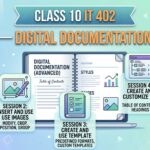




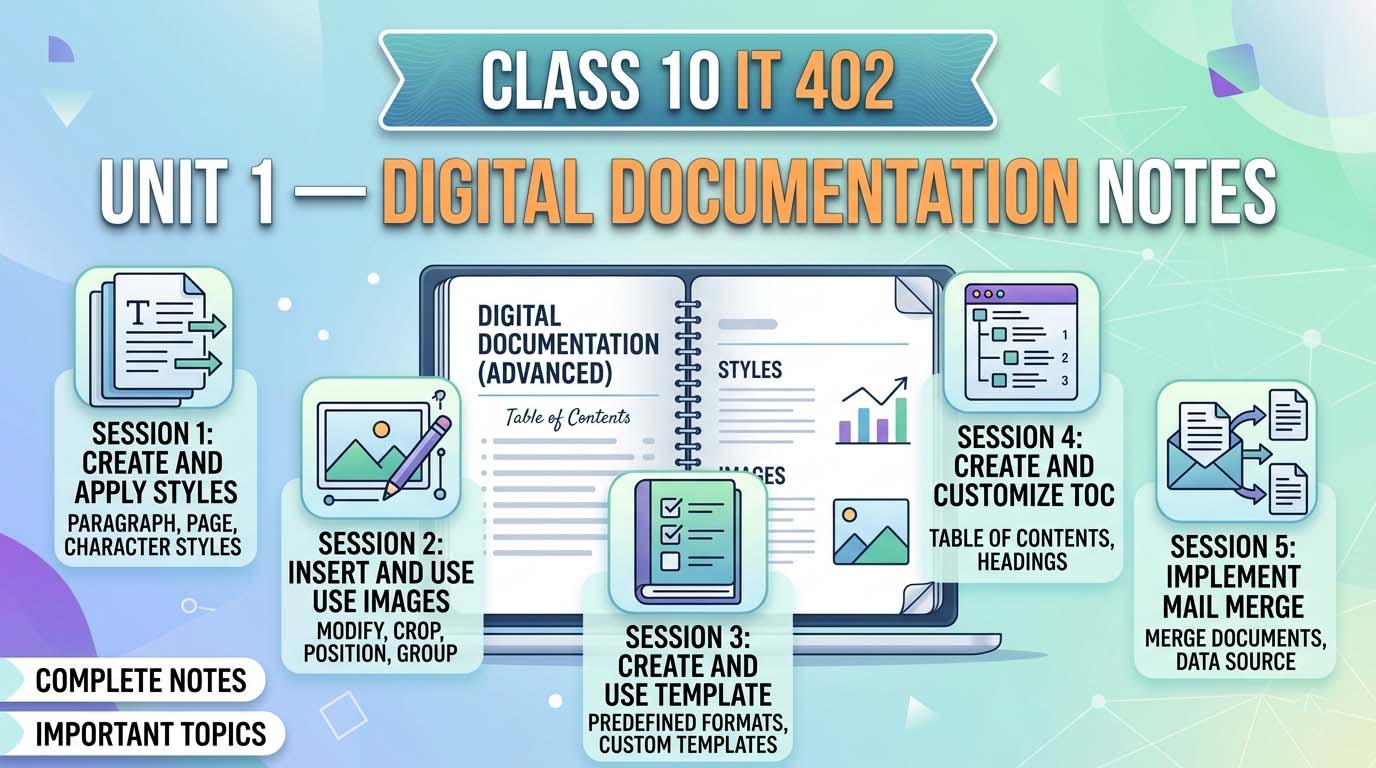
1. Introduction to Digital Documentation
Digital documentation has transformed from simple typing into a sophisticated process of creating professional, high-impact documents. In this unit, we focus on industry-standard tools like LibreOffice Writer and OpenOffice Writer. These platforms are virtually identical, so the skills you master here are universally applicable.
As your Technical Educator, my goal is to help you secure that 100/100 target. To achieve this, you must go beyond knowing “which button to click” and understand the technical logic behind the software. This guide is designed to bridge that gap, preparing you for both direct and scenario-based board exam questions.
2. Chapter 1: Applying Styles in a Document
2.1 Understanding Styles
Styles are a collection of built-in formatting features—such as font size, color, and alignment—that can be applied to elements like text, tables, or frames with a single click.
Benefits of using Styles:
- Time & Effort: Apply dozens of formatting attributes instantly.
- Uniformity: Maintains a consistent look across a 50-page document.
- Convenience: Change a style once, and every instance of it updates automatically.
2.2 Types of Styles
LibreOffice Writer provides six primary style categories. Mastery of these is essential for exam readiness:
- Paragraph Style: The Default Style. It controls alignment, tab stops, and line spacing for entire blocks of text.
- Character Style: Affects specific words or letters within a paragraph (e.g., bolding or font color).
- Frame Style: Used for formatting graphic and text frames, including borders and text wrapping.
- Page Style: Defines the layout, including margins, headers, footers, and page size.
- List Style: Manages the appearance of numbered or bulleted lists.
- Table Style: Predefined designs for table borders, shading, and cell formatting.
2.3 Applying Styles
Method 1: Styles and Formatting Pane
- Select the text or place your cursor in the paragraph.
- Open the Styles and Formatting Pane by pressing F11.
- Select the desired category (e.g., Paragraph Styles) and double-click the style name.
Method 2: Fill Format Mode (The “Magic Tool”)
This is the most efficient way to apply a style to multiple scattered areas.
- Press F11 to open the Styles window.
- Select the style you wish to apply.
- Click the Fill Format Mode icon (resembling a brush).
- Click on various scattered parts of the document to apply the style instantly.
- To deactivate, press the Escape (Esc) key.
[BOARD EXAM SCENARIO] Question: Sneha has 20 different headings scattered across her 30-page report. She wants to apply the “Heading 1” style to all of them quickly. Which tool should she use? Answer: Sneha should use Fill Format Mode. This “Magic Tool” allows her to apply the same style to scattered elements without re-selecting the style every time.
[IMAGE PLACEHOLDER: Fill Format Mode Icon] Description: A screenshot of the top right of the Styles and Formatting sidebar, highlighting the ‘Brush’ icon used for Fill Format Mode.
2.4 Creating and Updating Styles
- Selection Method: Format a piece of text manually, then click the New Style from Selection icon in the Styles window.
- Drag-and-Drop Method: Select manually formatted text and drag it into the Styles window to name and save it.
- Updating a Style: To modify an existing style, change the formatting of a paragraph using that style, then click the Update Selected Style option (found by clicking the arrow next to the “New Style from Selection” icon).
- Loading Styles: To import styles from a template or another file, click the arrow next to the “New Style from Selection” icon and choose Load Styles.
3. Chapter 2: Inserting and Formatting Graphics
3.1 Purpose of Graphics
Graphics provide visual impact, grab the reader’s attention, and facilitate a better understanding of complex content.
3.2 Inserting Images
There are five primary methods to insert images:
- From File: Insert > Image and select a file from your storage.
- Drag and Drop: Drag an image file directly into the Writer window.
- Scanner: Insert > Media > Scan (requires a connected scanner).
- Clipboard: Use Ctrl+C to copy an image from a source and Ctrl+V to paste it.
- Gallery: Insert > Media > Gallery to use LibreOffice’s built-in library.
3.3 Modifying Images
When an image is selected, the Image Toolbar appears, offering:
- Graphics Mode: Change to Grayscale, Black/White, or Watermark.
- Flip: Mirror the image Vertically or Horizontally.
- Transparency: Adjust percentage to create a watermark effect.
| Filter Name | Effect |
| Invert | Reverses the color values of the image. |
| Smooth/Sharpen | Softens the image or increases the contrast/sharpness. |
| Remove Noise | Removes single stray pixels from the image. |
| Solarization | Mimics the effect of exposing the image to too much light. |
| Aging | Applies a brown/sepia tint to make the image look old. |
| Posterize | Reduces the number of colors to make it look like a poster. |
| Pop Art | Applies high-contrast, artistic colors. |
| Charcoal Sketch | Makes the image look like a pencil or charcoal drawing. |
| Relief | Creates a 3D embossed effect. |
| Mosaic | Groups pixels into rectangular blocks for a tiled look. |
3.4 Advanced Image Formatting
- Cropping: Mastering the Crop tool allows you to refine visual focus. Choose Keep Scale (maintains proportions) or Keep Image Size (changes the scale as you crop).
- Resizing: Use the green handles or the Image Properties dialog for precise values.
- Arrangement: Controls the order of overlapping objects (Bring to Front or Send to Back).
- Alignment: Positions the image (Left, Right, Center, Top, Middle, Bottom).
- Anchoring: Links the image to a specific point (Paragraph, Character, or Page).
- Text Wrapping: Controls how text flows. Options include Wrap Off, Page Wrap (text flows around), and Wrap Through (image sits on top of text).
[BOARD EXAM SCENARIO] Question: Rohan wants his image to stay exactly next to a specific paragraph, even if he adds more text above it. Which feature should he use? Answer: Rohan should use Anchoring. By anchoring the image to the paragraph, the image will move automatically whenever the paragraph moves.
3.5 Drawing Objects
- Drawing Tool: When you select a shape (Rectangle, Ellipse, etc.), the cursor changes to a crosshair or plus-hair (+) symbol.
- Grouping: To move multiple shapes as a single unit, select them all (hold Shift while clicking), right-click, and select Group.
4. Chapter 3: Working with Templates
4.1 Defining Templates
A Template is a predefined layout containing sample content, themes, and styles.
- Critical Difference: A Style controls a specific element (like a paragraph), while a Template controls the entire document structure.
4.2 Using Predefined Templates
Access the Template Manager via File > New > Templates or use the shortcut Ctrl + Shift + N.
4.3 Creating and Managing Templates
- From a Document: Create your layout, then go to File > Templates > Save as Template.
- Using the Wizard: File > Wizards > [Letter/Fax/Agenda]. This is a step-by-step utility that automates template creation.
- Set as Default: In the Template Manager, right-click a template and select “Set as Default” so every new document (Ctrl + N) starts with that layout.
[BOARD EXAM SCENARIO] Question: An office assistant needs to create a standardized “Monthly Sales Report” every month. How can he save time? Answer: He should create the report layout once and save it as a Template. Each month, he can simply open the template to have the structure, branding, and styles ready instantly.
5. Chapter 4: Table of Contents (ToC)
5.1 Understanding ToC
A Table of Contents serves as an index for long documents, using hyperlinked headings for rapid navigation. In Writer, a ToC appears with a gray background, indicating it is a special “field” generated by the software.
5.2 Creating a ToC
- Use Styles (Heading 1, 2, 3) for all your titles.
- Go to Insert > Table of Contents and Index > Table of Contents, Index or Bibliography.
5.3 Customizing the ToC
The ToC dialog box features five main tabs:
| Tab Name | Purpose |
| Type | Set the Title and scope (entire document or chapter). |
| Entries | Define the structure using: LS (Link Start), E# (Chapter Number), E (Entry Text), T (Tab Stop), and LE (Link End). |
| Styles | Assign specific paragraph styles to different ToC levels. |
| Columns | Split the ToC into multiple columns (like a magazine index). |
| Background | Add colors or graphic textures behind the ToC. |
5.4 Maintaining the ToC
Writer does not update the ToC automatically if you change a heading. You must Right-click the ToC and select Update Index. Use Delete Index to remove it.
6. Exam Tips & Summary
Essential Shortcut Keys
| Function | Shortcut Key |
| Styles and Formatting Pane | F11 |
| Manage/Open Templates | Ctrl + Shift + N |
| New Document (Blank) | Ctrl + N |
| Paste from Clipboard | Ctrl + V |
Final Booster Advice
To secure your 100/100, always remember the “under-the-hood” details. If a question asks how to create a ToC, don’t just say “click insert.” Provide the full path: Insert > Table of Contents and Index > Table of Contents, Index or Bibliography.